 This week, we'll look at how to set up a parking space occupancy sensor in Home Assistant. To do this, we'll use a Yocto-RangeFinder.
We really like Home Assistant here at Yoctopuce, and we have several setups in different buildings. One of these buildings has a parking space and we'd like to know when it's in use.
The setup
This parking space is located along the side of the building, and there's already a conduit running from inside the building to the side of the parking space for lighting. To detect the presence of a car in the space, we used a Yocto-RangeFinder. The sensor was mounted separately and placed outside against the wall, facing the car door. The board is placed inside the building and connected to a YoctoHub-Ethernet.
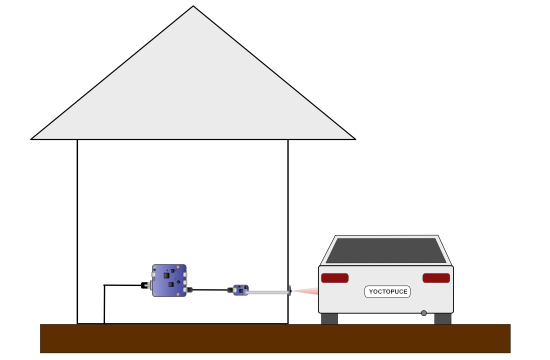
The installation diagram
We checked that everything was working and we configured the Yocto-RangeFinder to "Long range" mode. After a few tests, we determined that when a car is present, the distance between the Yocto-RangeFinder and the vehicle is at most one meter.
Home Assistant
Now that our setup is complete, we need to integrate the modules into Home Assistant, which is itself connected to the local network.
Once everything is connected, we move on to the first step: configuring the YoctoHub to connect to Home Assistant using the MQTT protocol. Note: We'll just list the steps without going into detail, as we already have a post on the topic.
In general, you need to:
- Install the Mosquitto MQTT broker
- Add an MQTT integration that connects to Mosquitto
- Create an MQTT user for the YoctoHub
- Configure an MQTT callback on the YoctoHub
When these steps are completed, the Yoctopuce modules automatically appear in the MQTT devices.
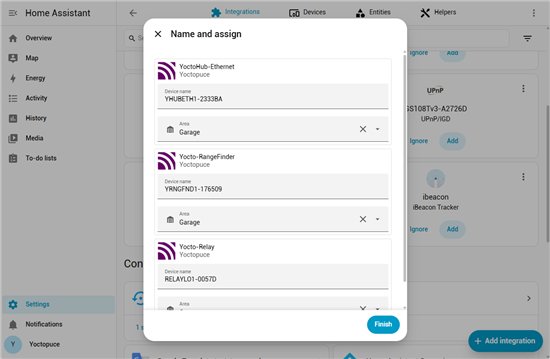
The modules appear automatically in the MQTT integration
The binary sensor
Technically, we could use the Yocto-RangeFinder value directly to determine if there is a car, but that's a bit crude. A cleaner solution is to create a "Binary sensor" that directly indicates whether the space is occupied or not. This makes it easier to create automations and interfaces. Above all, it allows you to consolidate the logic in a single location.
To create this "binary sensor," go to the "Helpers" tab in the "Devices and services" control panel. Next, create a new "Template" helper and select "binary sensor".
You must then configure this new sensor. The first step is to give it a name ("Parking space"). Next, you need to write the test that determines whether the space is occupied or not.
The following code takes the current state of our Yocto-RangeFinder, converts it to a floating-point value, and compares it to 1000 mm.
{{states("sensor.yrngfnd1_176509_rangefinder1")|float <1000}}
Note: if you use this code at home, you'll need to replace the sensor name with the one you're using. Fortunately, Home Assistant recently added autocomplete functionality to the editor, which makes finding the sensor name much easier.
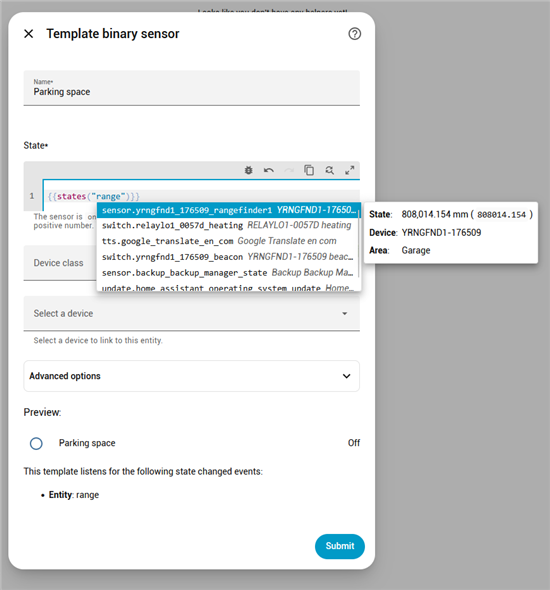
Home Assistant has added autocomplete to the editor
The "Device class" field lets you define the type of information this sensor represents. In our case, we used "Occupancy." Finally, we decided to link this sensor to the Yocto-RangeFinder.
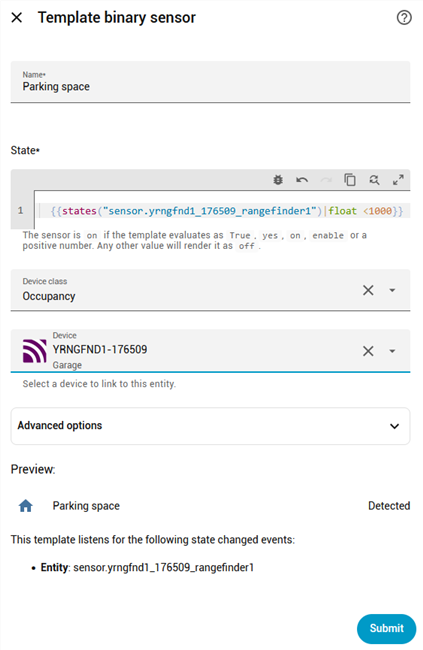
Sensor settings
Conclusion
And there you have it! We now have a Home Assistant entity that lets us know if the parking space is available. This can be used to create various automations and gather statistics on the use of this parking space.
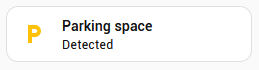
Le sensor on the dashboard