 A few weeks ago, we showed you how to create a small WebApp for remote control of a heater using a simple HTML file and a few dozen lines of TypeScript code, thanks to VirtualHub for Web. This week, we'll take it one step further and enhance it by adding a graph showing the history of measured temperatures.
If we were to code the entire creation of a graph from recorded data, with the ability to zoom, scroll, and so on, for this post, it would be no mean feat. Fortunately, Yoctopuce provides an application written in TypeScript that does just that: Yocto-Visualization for Web. What's more, it's designed to be easily integrated into another application, as an EcmaScript module. Let's see how this can be done...
Yocto-Visualization for Web integration
To integrate Yocto-Visualization for Web into our Web App, we need to prepare a dedicated div in which to display the graph, and indicate the id of this div in the graph configuration. This div must use absolute or relative positioning. In our case, we want to display a single graph that fits into the flow of the application, so we use the relative solution, with a fixed height. We allocate 100% of the width to the div, to allow the graphic to adapt naturally to the size of the screen. The left and right margins are defined in the graphic configuration. Here's the style we apply to this div:
display: block;
position: relative;
width: 100%;
height: 400px;
}
The code that launches Yocto-Visualization for Web consists of a few lines of TypeScript:
- We load the graph configuration from the server, which we've chosen to store in a separate XML file so that it can be easily modified if necessary.
- We call the YWebPage.run() method, which autonomously manages data loading and display.
- The only slight subtlety is that, as we have chosen to define the size of the graph relative to the div so that it occupies the entire width of the window, we send a resize event at start-up to force Yocto-Visualization for Web to calculate its initial size.
Here is the corresponding implementation:
async function startYoctoVisualization4web(): Promise<boolean>
{
let configXml = await fetch('config.xml');
if (!configXml.ok) {
return false;
}
YWebPage.run(await configXml.text());
// trigger a resize event to force a graph refresh
setTimeout(window.dispatchEvent, 100, new Event("resize"));
return true;
}
In principle, that's all that's needed for Yocto-Visualization for Web to run entirely inside a TypeScript WebApp and to get a very user-friendly interface like the one below:
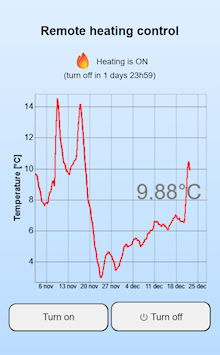
A WebApp embedding Yocto-Visualization for Web
You can find the complete project, including the tools needed to build it, on our GitHub sample repository.
For those who want to know more, let's see where the various files in this project come from...
Pre-compiled TypeScript libraries
To avoid having to duplicate all the complete source file tree of Yocto-Visualization for Web in this project, which would have complicated its structure, we chose to directly integrate the monolithic JavaScript precompiled bundle, found in the dist/es2017 directory of the Yocto-Visualization for Web repository. As we only need the code for viewing the graph, and not the editing functions, we've used the yv4web-readonly.js file. Adding the corresponding prototypes file, yv4web-readonly.d.ts, enables the TypeScript compiler and editor to validate the typing of arguments.
To switch the relay, we need the Yoctopuce library. As the base library is already present in the Yocto-Visualization for Web bundle, we're going to import it from there rather than include it twice. To do this, we create a somewhat dummy yocto_api.js import file, which simply re-exports all the contents of yv4web-readonly.js:
// This will export a bit more than the original yocto_api.js, but it won't hurt
export * from './yv4web-readonly.js';
We still need to add the Yoctopuce library file specific to relay switching. We're also integrating it directly into our project in precompiled JavaScript form, as you can find it in the dist/esm directory of the TypeScript library, as well as the yocto_relay.d.ts file used by the TypeScript compiler and editor to validate argument typing.
The XML graphic configuration file
You can, of course, start from our project's config.xml file and modify the parameters to suit your needs. As a minimum, you need to change the serial number corresponding to the sensor you wish to display. If you prefer to recreate a complete Yocto-Visualization for Web configuration using the interactive interface, this is also possible. The easiest way is to download the Yocto-Visualization for Web .zip archive via the link on our Tools page, and run the following command:
This launches the Yocto-Visualization for Web interface in a new browser window. Configure your graphics as you wish, then choose from the context menu. Instead of being saved, the XML configuration is then displayed in the browser window, so you can copy and paste it. Note that the XML code contains all the keys supported by Yocto-Visualization for Web. It is therefore not as readable as the one we provide as an example in this project, but you can safely delete any keys corresponding to parameters you don't use.
Important: make sure you completely remove the <Hubs> section from the XML configuration file, so as not to leave any passwords in it. The definition of hubs is not necessary in our use case, as our main TypeScript program itself makes the call to YAPI.RegisterHub(), using the password entered directly by the user.
Compiling and installing the project
The example project we've made available on GitHub includes a package.json file that allows you to execute the following commands:
- npm install, to install the TypeScript compiler, if you haven't already installed it globally
- npm run build, to build the minimized app.min.js bundle containing all transpiled TypeScript code, both application-specific code and imported modules.
- npm run app-server, for testing the application locally: the command launches a small Web server, whose code you can find in app-server.ts, then opens a browser window enabling you to test the web interface without having to transfer files to your actual Web server.
Once you've got the interface you want, all you have to do is copy the following three files to a public web server:
- app.html
- app.min.js
- config.xml
Interesting little detail: this application doesn't need to be hosted on the same server as VirtualHub for Web. If the server hosting these three files and the VirtualHub for Web server support the https:// protocol, the browser accepts cross-origin requests, as VirtualHub for Web provides all the CORS authorization headers required for this type of operation.