 This week, we're going to make a few more improvements to the WebApp we built a few weeks ago for remotely controlling a heating system. We're going to turn this WebApp into a Progressive WebApp (PWA), which will enable it to be installed like a native app on Windows.
A Progressive WebApp (PWA) is a web application that combines the advantages of a web site and a native app. You can install it directly from a browser and it can run off-line thanks to the cache. On Windows, this allows us to disguise our WebApp as a native app. It appears in the Start menu and runs in its own window.
A PWA consists of two components: a manifest that describes the app and a Service Worker, which is JavaScript code that runs just before the window opens and acts somewhat like a proxy.
The Manifest
The first step is to create the manifest that describes our app. It is a simple JSON file consisting of a few fields. At a minimum, you must provide:
- The application name
- Two icons (512px and 192px)
- The URL of the main page
- The display mode
Here, for example, is the manifest for our application:
"lang": "en-us",
"name": "Remote heating control",
"description": "Yoctopuce Remote heating control Example",
"start_url": "./app.html",
"orientation": "any",
"display": "standalone",
"icons": [
{
"type": "image/svg+xml",
"src": "yocto.svg",
"sizes": "512x512"
},
{
"type": "image/svg+xml",
"src": "yocto.svg",
"sizes": "192x192"
}
]
}
The complete documentation for the manifest fields is available on MDN.
Finally, you must add a reference to this manifest in the WebApp's code using the link tag .
The Service Worker
A Service Worker is a script executed in the background by the browser that manages the resource cache and intercepts network requests to use cached versions if our WebApp's server is off-line. In practice, this allows the PWA to load even without an internet connection, rather than displaying a 404 error.
During the installation event, the Service Worker opens a cache named "remote-heating-control" and stores the files used by the application there:
- the home page (./app.html)
- the application's JavaScript code (app.min.js)
- the page icon (yocto.svg).
This ensures that these elements are immediately available, even without an internet connection.
When the application is running and a resource is loaded via the fetch event, the Service Worker first checks if it is already in the cache. If so, it returns it directly. Otherwise, it attempts to fetch it from the network and then to store it in the cache for future use.
Here is the code for our Service Worker (sw.js file):
// Uses the install event to pre-cache all initial resources.
self.addEventListener('install', event => {
event.waitUntil((async () => {
const cache = await caches.open(CACHE_NAME);
cache.addAll([
'./app.html',
'./app.min.js',
'./yocto.svg'
]);
})());
});
self.addEventListener('fetch', event => {
event.respondWith((async () => {
const cache = await caches.open(CACHE_NAME);
// Gets the resource from the cache.
const cachedResponse = await cache.match(event.request);
if (cachedResponse) {
return cachedResponse;
} else {
try {
// If the resource was not in the cache, tries the network.
const fetchResponse = await fetch(event.request);
// Saves the resource in the cache and return it.
cache.put(event.request, fetchResponse.clone());
return fetchResponse;
} catch (e) {
// The network failed
}
}
})());
});
Next, we need to register this Service Worker in the HTML code of our web application:
if ('serviceWorker' in navigator) {
navigator.serviceWorker.register('./sw.js', {scope: './'});
}
</script>
Usage
Once these changes are made, browsers that support Progressive WebApps display an icon allowing you to install the app. For example, here is the page displayed in Edge:
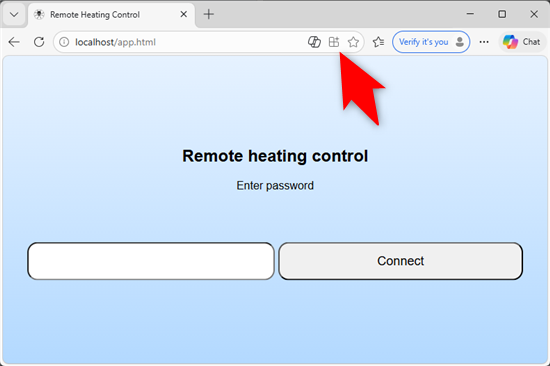
The page displayed in Edge
And in Chrome:
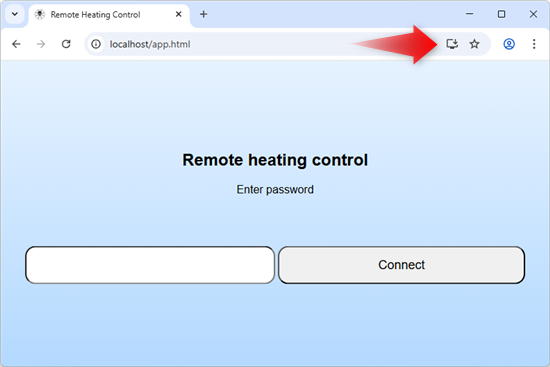
The page displayed in Chrome
If you click on this icon, the browser offers to install the app locally.
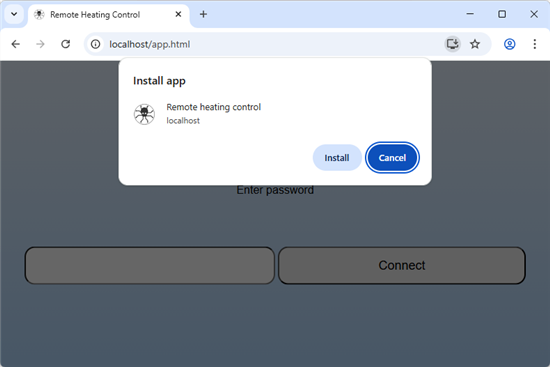
Installing
Once installed, the app is available just like any native app. It has its own window and its own icon in the taskbar. The application loads even if the computer is not connected to the internet, thanks to the Service Worker. In this case, the application cannot connect to the remote Yoctopuce modules, but the application interface remains usable and an error message may be correctly displayed.
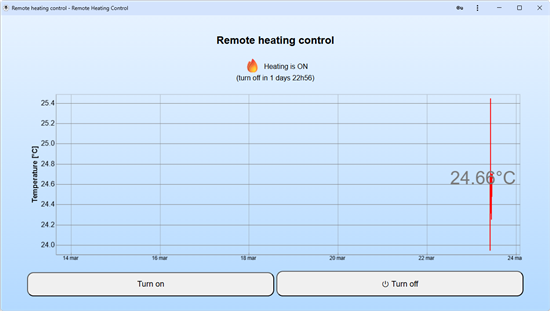
The application
The app even appears in the list of Windows apps. Unfortunately, it is not currently possible to display a version number in this window.
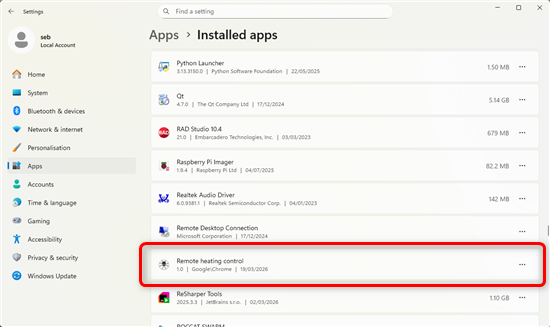
The PWA appears in the list of installed apps
Conclusion
Progressive Web Apps make using a web app feel similar to using a native app. Installation is very simple and works on any Windows machine (using Edge or Chrome). And, as a bonus, it allows an error message to be displayed correctly if the machine is not connected to the internet.
Note: The complete source code for the app is still available on GitHub.