 We recently received a support request asking us how to compile our C++ library and generate a ".lib" file that can be used in Visual Studio. We thought this might be of interest to others, so we've added a new example to the library and we'll explain here how it works.
The recommended way to integrate our C++ library into an application is to include the library's source files directly in the application. This is the most efficient way to write the code and the one that best avoids compilation issues. We recently published a post explaining the procedure. Since everything is compiled at the same time, we can be sure that everyone is using the same compiler and the same options, but, of course, this makes the compilation take longer.
Splitting the compilation of large projects into several projects and combining them at the end generally reduces compilation time, while also isolating some parts of the project and simplifying library updates.
The Prog-Lib example
We've added a Prog-Lib example, which is a Visual Studio solution comprising two projects: a YoctopuceLib project that compiles only the Yoctopuce library, and a UseYoctopuceLib project that uses our library to display the modules present on the USB ports.
The YoctopuceLib project includes only the files from our C++ library. When compiled, it does not generate an executable, but rather a static library (.lib).
The UseYoctopuceLib project contains only the user code that calls the Yoctopuce library. This project contains a reference to the YoctopuceLib project. When compiled with Visual Studio, it includes the latter's ".lib" file and generates an executable.
The C++ code for the UseYoctopucLib project.
using namespace std;
int main()
{
string errmsg;
// Sets up the API to use local USB devices
if(YAPI::RegisterHub("usb", errmsg) != YAPI::SUCCESS) {
cerr << "RegisterHub error: " << errmsg << endl;
return 1;
}
cout << "Device list: " << endl;
YModule *module = YModule::FirstModule();
while (module != NULL) {
cout << module->get_serialNumber() << " ";
cout << module->get_productName() << endl;
module = module->nextModule();
}
return 0;
}
The advantage of this structure is that it allows the YoctopuceLib project to be reused in several other Visual Studio projects. For example, we'll see how to include this project in your own application.
Using the YoctopuceLib project
You can include the YoctopuceLib project in your Visual Studio solutions, thereby avoiding the need to manually include the C++ and C files in your project.
Let's start by creating a new C++ console application called "ConsoleApplication1". Visual Studio creates a "ConsoleApplication1" solution that includes a "ConsoleApplication1" subproject.
First, you need to add the YoctopuceLib project to this solution.
The steps are:
- Right-click on the solution in the "Solution Explorer" pane
- Select "Add"
- Select "Existing Project"
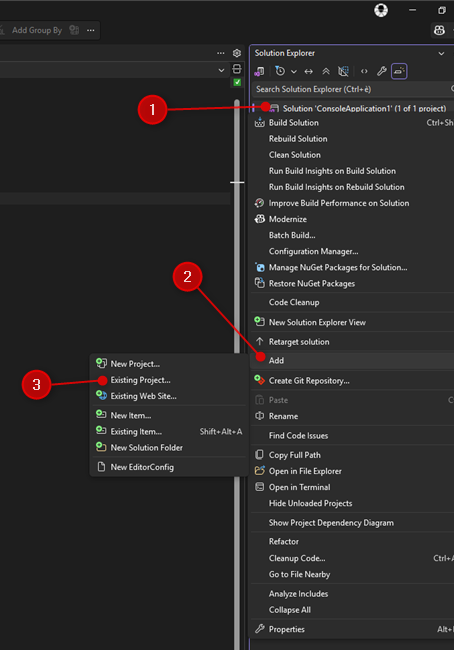
Adding the project
Next, select the "YoctopuceLib.vcxproj" file located in the "Examples\Prog-Lib\YoctopuceLib" subdirectory of our C++ library.
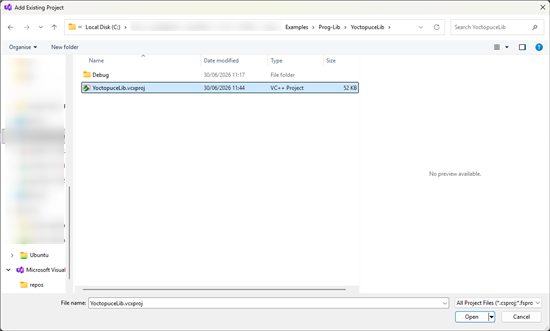
The YoctopuceLib.vcxproj project to be included
Next, modify the include path for the "ConsoleApplication1" project and add the "Source" subdirectory from our C++ library. Note that you do not need to add all the subdirectories, since the application only references the C++ objects.
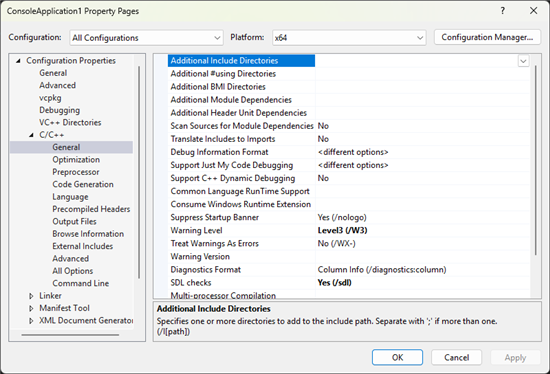
You need to add the Source directory to the include path
Finally, you must add a reference to the YoctopuceLib project so that Visual Studio knows to include the contents of this project in the application.
The steps are:
- Right-click on "References" in the "Solution Explorer" pane
- Select "Add Reference"
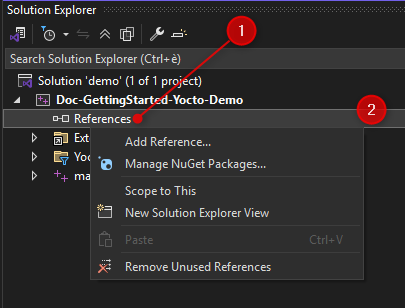
Add a reference...
Then check the YoctopuceLib project.
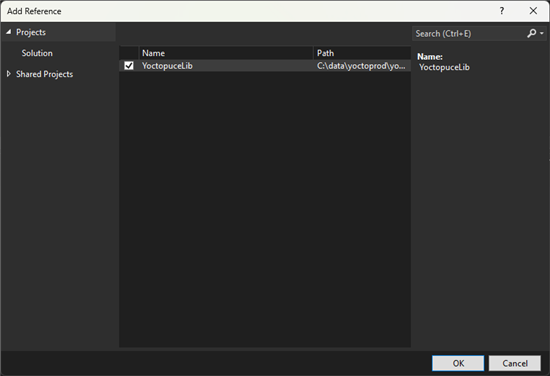
... and select YoctopuceLib
And that's it. The "ConsoleApplication1" application can now use all the features of our library.
Conclusion
As you can see, the procedure isn't very complicated and allows you to easily integrate our library into your projects. The main advantage of this solution is that you don't need to know which files to include in your project.
If you're using Visual Studio, this should make things a little easier for you, and if you're using other development environments, we recommend including the source files directly in your project, as we explained in this post.