 QR codes are often used for advertising purposes to share website addresses on posters or flyers. They can also convey other types of information, such as Wi-Fi settings, a vCard, or a GPS location. If you can generate them dynamically, you could even create a time-limited code, or a proof-of-time stamp... and that's where it gets really interesting.
To display a dynamic QR code, you need to use a screen that's easy to read with a cell phone camera. Backlit screens aren't ideal for digital cameras, but e-paper displays are perfect. Here's an example of what you might find in hotel rooms where the Wi-Fi password needs to be changed regularly to prevent guests from misusing it:
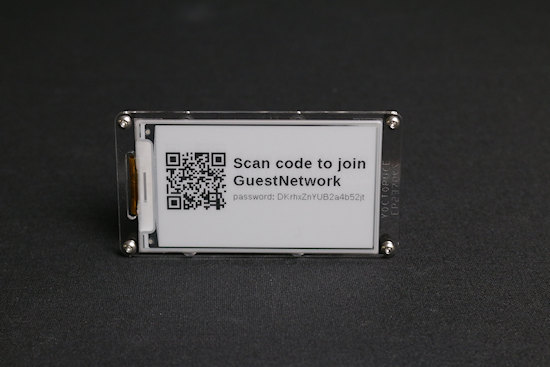
A QR code to help visitors join the guest network
To make your life easier, we've chosen to include the code for generating QR codes directly in our e-Paper controller, the Yocto-Display-ePaper-C. As a result, there's no need to integrate an additional library into your project: all it takes is a call to the drawQRCode() function. The code used to display the message above is as follows:
pwd = "DKrhxZnYUB2a4b52jt" # note: escape characters \;,": if any
qrContent = "WIFI:T:WPA;S:{0};P:{1};;".format(ssid,pwd)
dispLayer.selectFont("Large.yfm")
dispLayer.drawText(145, 55, dispLayer.ALIGN.TOP_LEFT, "Scan code to join")
dispLayer.drawText(145, 90, dispLayer.ALIGN.TOP_LEFT, ssid)
dispLayer.selectFont("Medium.yfm")
dispLayer.drawText(145, 130, dispLayer.ALIGN.TOP_LEFT, "password: " + pwd)
dispLayer.drawQRCode(15, 50, dispLayer.QRMODE.BYTES_ECCL, 4, qrContent)
QR codes supported by Android (10+) and iOS (11+)
In a QR code, you can include, for example:
- A URL, which the phone will offer to open in a browser:
https://site.com/adress?parameters
- A Wi-Fi configuration, which the phone will offer to activate:
WIFI:T:WPA;S:network_name;P:password;;
- A phone number that the phone will suggest calling:
tel:+123456789
- An SMS that the phone will prompt you to send to:
sms:+123456789?body=hello%20there
- An email that the phone will suggest sending:
mailto:user@domain.com?subject=important&body=Hello!
- A business card that the phone will suggest adding to the address book:
BEGIN:VCARD...
- A precise location, via GPS coordinates:
geo:46.22662,6.14034
Other messages specific to particular apps are supported, such as a link to a Signal group or a WhatsApp group, encoded as a special URL. These URLs use the App Links mechanism on Android (Universal Links on iOS), which the phone automatically redirects to the correct app if it is installed, and to the app's installation page if it is not.
QR Code Size
The smallest possible QR code fits within a 21x21-pixel square and can contain only 17 bytes of information at best. The largest QR code supported by our e-Paper display controller measures 145x145 dots and can hold up to approximately 2KB.
In practice, QR codes are rarely displayed at a 1:1 scale; instead, they are enlarged to make them easier to read from a distance. This is what the penultimate parameter of the drawQRCode() method is for: in our example above, each dot of the QR code is displayed as a 4x4-pixel square.
In practice, you generally choose an area of the screen to allocate to the QR code, and you'd like it to be centered there with the best possible magnification. You can use the following code for this:
qrMode = dispLayer.QRMODE.BYTES_ECCL
qrSize = dispLayer.drawQRCode(x, y, qrMode, 0, text)
zoom_max_x = w // (qrSize + 8)
zoom_max_y = h // (qrSize + 8)
zoom = min(zoom_max_x, zoom_max_y, 16)
zoomed_size = qrSize * zoom
x += (w - zoomed_size) // 2
y += (h - zoomed_size) // 2
dispLayer.drawQRCode(x, y, qrMode, zoom, text)
This code uses a trick: when the drawQRCode() method is called with a zoom factor of zero, nothing is displayed, but the function returns the size of the QR code in points. We can then calculate the optimal zoom level and centering parameters, leaving 4 white dots all around the QR code as required by the standard (even though in practice, phones often need fewer).
Advanced Parameters
So far, we've left out the third parameter of the drawQRCode() method: the QR code's encoding mode. This mysterious parameter defines two things: the character set used to store the content, and the desired level of error correction.
The most commonly used character set is BYTES mode, which allows any byte to be included in the content. In a few specific cases where you don't need lowercase letters or special symbols other than +-*/.:%$ and spaces, you can use UPCASE mode, which saves about 30% in dot count, allowing you to make the code slightly larger. However, this is very rarely applicable: for example, you are allowed to write HTTPS://SITE.COM, but the rest of the URL must be case-sensitive.
The error correction level determines the redundancy of information in the code, ensuring that the code can be decoded even if dots are obscured by smudges or intentionally superimposed drawings. There are four levels, allowing for the restoration of 7% to 30% of missing dots, at the cost of 20% to 110% additional dots in the code, thus increasing the code's size:
| EC Level
| Nominal restoration capacity | Relative size of the QR code's side |
|---|---|---|
| ECCL (Low) | ~7% | baseline |
| ECCM (Medium) | ~15% | +10% |
| ECCQ (Quartile) | ~25% | +30% |
| ECCH (High) | ~30% | +45% |
As you can see, adding redundancy to correct missing dots significantly affects the size of the QR code. If the space allocated to the code on the screen is fixed, adding redundancy will result in smaller dots, which are more likely to be misread from a distance. This is therefore a trade-off you'll need to manage based on your application. If you don't specifically need error tolerance and aren't drawing over your QR code, a low or medium correction level is often preferable.
Display Speed
The computations required to display a large QR code are significant, due to error correction calculations and the optimization phase during which different masks must be tested to find the one that minimizes the risk of reading errors. We based our implementation on Richard Moore's code, released under the MIT license, which is itself derived from the classic Project Nayuki, also licensed under the MIT license. We have significantly reworked the code so that it runs efficiently on the small 16-bit MCU used by our modules. Ultimately, you'll be able to display an 80-character QR code in a fraction of a second, and a 600-byte QR code in about one second.
Conclusion
Native support for displaying QR codes is another string to your bow if you've opted for the Yocto-Display-ePaper-C. Just make sure to install firmware version 76629 or higher, so that it includes QR code generation, and to use an up-to-date programming library that includes the drawQRCode method. We'll have the opportunity to revisit concrete examples of using dynamic QR codes in future articles.
Finally, note that the QR code display functions will also work on large Yoctopuce OLED screens such as the Yocto-MaxiDisplay-C with up-to-date firmware, even though they are less useful in that context.