 This week, we'll be looking at how to integrate our C# programming library into a .NET MAUI application. This new framework promises the holy grail for all developers: to write a single application that can be used on any platform. Let's take a look.
.NET MAUI (Multi-platform App UI) is an open-source framework developed by Microsoft that enables the creation of native cross-platform applications (Windows, macOS, Android, iOS) using C# and XAML. This framework hopes to succeed where many other frameworks have failed in the past, such as JavaFX, QT, Xamarin, and others. Note the surprising absence of Linux support, which, from our point of view, is a real shame.
Mobile vs. Desktop
This framework is based on .NET 6, so our C# library works without a hitch, but there is one major limitation. Our library doesn't work on Android and iOS.
Our C# library consists of two layers: a high-level layer implements the Yoctopuce objects (YModules, YTemperature, and so on) and a low-level layer handles communications with the hardware. The high-level layer is written in C# and is supported by all versions of .NET 6 and .NET MAUI.
The low-level layer, called "yapi", works differently. It's a dynamic library written in C that interacts directly with the OS. This layer is not portable and requires a version for each supported platform. On the first call to the library, the C# code of the high-level layer detects the OS and architecture of the machine and loads the correct version of the "yapi" layer.
This layer is available for the following architectures/OS:
- Windows Intel 32-bit
- Windows Intel 64-bit
- Windows Arm 64-bit
- Linux i386
- Linux x64
- Linux armhf (ARM 32-bit)
- Linux aarch64 (ARM 64-bit)
- macOS 64-bit
Our C# library only works correctly on these platforms, as Android and iOS don't provide an API for direct access to USB ports. If you try to use it on iOS, for example, the library returns an error. For this reason, it is not possible to use our library in a .NET MAUI Android or iOS application.
Despite these limitations, let's take a look at how to use .NET MAUI in a desktop application.
A desktop app
We're going to create a small application that lists the serial numbers of Yoctopuce modules connected via USB or a remote YoctoHub.
We start by installing Visual Studio 2022, making sure to select the ".NET Multi-platform App UI developement" option during installation.
We can then create a ".NET MAUI App" project. Visual Studio creates a complete project with an application template.
We then need to include our programming library in the project. The procedure is identical to the one explained in our C# tutorial. In other words, you need to add to the project the C# files for the classes you're going to use, as well as the various "yapi" libraries.
For this example, we are using only the YAPI and YModules classes defined in the yocto_api.cs file. The "yapi" layer includes 32-bit Windows (yapi.dll), 64-bit Windows (amd64/yapi.dll), ARM Windows (arm64/yapi.dll) and macOS (libyapi.dylib). For these 4 files, don't forget to change the "Copy to Output Directory" property to "Copy always".
A MAUI application uses XAML to define the user interface. XAML is an XML-based declarative language that is also used with the UWP framwork. The language is not very intuitive, especially the binding system, but by using the base code and the Microsoft documentation as a guide, we can create our interface.
The contents of MainPAge.xaml:
<ContentPage xmlns="http://schemas.microsoft.com/dotnet/2021/maui"
xmlns:x="http://schemas.microsoft.com/winfx/2009/xaml"
x:Class="Prog_MAUI.MainPage">
<Grid
RowDefinitions="100,auto,auto,*"
ColumnDefinitions=".25*,.75*"
Padding="10"
RowSpacing="20"
ColumnSpacing="20">
<Image Source="logo.png" />
<Label
VerticalTextAlignment="Center"
Grid.Column="1"
FontSize="42">
Yoctopuce Inventory in Maui
</Label>
<Button
Clicked="OnUpdateClicked"
Grid.Row="2"
Text="Perform Inventory" />
<Entry
x:Name="TargetURL"
BindingContext=""
Grid.Row="2"
Grid.Column="1"
Placeholder="Hub URL" />
<CollectionView Grid.Row="3"
Grid.ColumnSpan="2"
ItemsSource="{Binding Inventory}">
<CollectionView.ItemTemplate>
<DataTemplate>
<Grid Padding="0,5">
<Border Padding="5">
<Label Text="{Binding .}"></Label>
</Border>
</Grid>
</DataTemplate>
</CollectionView.ItemTemplate>
</CollectionView>
</Grid>
</ContentPage>
The elements to remember are the button that calls the OnUpdateClicked method, the TargetURL text field that allows you to enter the URL of the YoctoHub, and the CollectionView that displays the list of serial numbers using the Inventory attribute in our code.
Once the interface has been defined, it's time to write the application logic. All the code is in the OnUpdateClicked method, which is called by the button.
The contents of MainPAge.xaml.cs:
{
public string lastURL = "";
public ObservableCollection<string> Inventory { get; }
= new ObservableCollection<string>();
public MainPage()
{
InitializeComponent();
BindingContext = this;
}
private void OnUpdateClicked(object? sender, EventArgs e)
{
string url = TargetURL.Text;
// check if we need to update the urls
if (url != lastURL) {
if (lastURL != "") {
YAPI.UnregisterHub(lastURL);
}
string errmsg = "";
int res = YAPI.RegisterHub(url, ref errmsg);
if (res != YAPI.SUCCESS) {
DisplayAlert("Erreur", errmsg, "OK");
return;
}
lastURL = url;
}
Inventory.Clear();
YModule module = YModule.FirstModule();
while (module != null) {
Inventory.Add(module.get_serialNumber());
module = module.nextModule();
}
}
}
We begin by retrieving the URL entered by the user. If it has changed, we update the library using the YAPI.UnregisterHub and YAPI.RegisterHub methods. Next, we enumerate the detected modules using the YModule class and update the Inventory property, which is used by the interface.
When these modifications have been made, we can test the application and check that everything is working correctly:
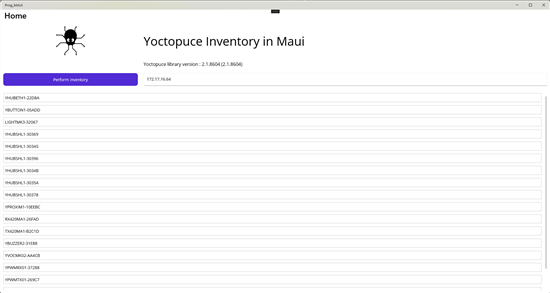
Here is the application that runs under Windows
Under macOS
To test the application under macOS, you need to copy the project to a Mac with .NET 9 SKD and MAUI installed. The SDK is available directly on the Microsoft website. Once installed, you can use the following command to install MAUI:
sudo dotnet workload install maui
On macOS, access to USB devices and network features requires specific permissions. To obtain these permissions, add the following keys to the project's Platforms/MacCatalyst/Entitlements.plist file:
<true/>
<key>com.apple.security.network.client</key>
<true/>
<key>com.apple.security.network.server</key>
<true/>
These entries allow respectively:
- com.apple.security.device.usb : access to USB devices (to detect locally connected Yoctopuce modules).
- com.apple.security.network.client et com.apple.security.network.server : network communications (to interact with a remote YoctoHub)
Once these two steps have been completed, you can test the application by running the command:
dotnet run --framework net9.0-maccatlyst
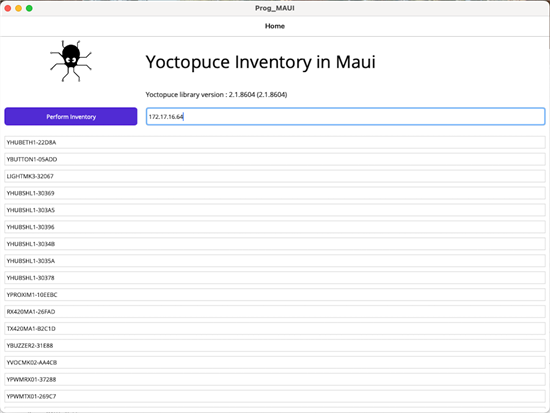
Here's the application that runs under macOS
The source code
The source code for this application is now included in our C# library. Instead of starting from scratch, you can open the project in the Examples/Prog-MAUI directory and start from a working project.
Conclusion
To sum up, .NET MAUI can be used to create cross-platform applications, but it is not possible to use our library on Android and iOS. It's also a shame that Linux support is missing. It would have been the first framework to provide a solution for creating a native application that works on all three OSes since the end of Mono.