 For most people, Windows XP is dead and buried. However, as we already mentionned, there are still machines running XP, and as we make it a point of honour to support older operating systems for as long as reasonably possible, we decided to check whether our C++ library could still be recompiled to run on an OS that has not been supported for over 10 years. As we shall see, it is possible, but there are several pitfalls to avoid...
For this post, we're going to compile the Doc-Inventory example of the C++ library so that it can run on an old 32-bit Windows XP machine.
#include "yocto_api.h"
using namespace std;
int main(int argc, const char * argv[])
{
string errmsg;
// Setup the API to use local USB devices
if(YAPI::RegisterHub("usb", errmsg) != YAPI::SUCCESS) {
cerr << "RegisterHub error: " << errmsg << endl;
return 1;
}
cout << "Device list: " << endl;
YModule *module = YModule::FirstModule();
while (module != NULL) {
cout << module->get_serialNumber() << " ";
cout << module->get_productName() << endl;
module = module->nextModule();
}
YAPI::FreeAPI();
return 0;
}
As the code is very simple and only accesses the USB port, we thought it would be enough to compile a 32-bit executable and that it would run directly under Windows XP. But no. Windows XP doesn't recognize the executable and simply refuses to run it.
We started with the Visual Studio project, which is located in the Examples/Doc-Inventory subdirectory of our C++ programming library, but if you want to start from scratch, we have an post dedicated to this topic. For this post, we've used Visual Studio 2026, but the steps are the same with previous versions of Visual Studio.
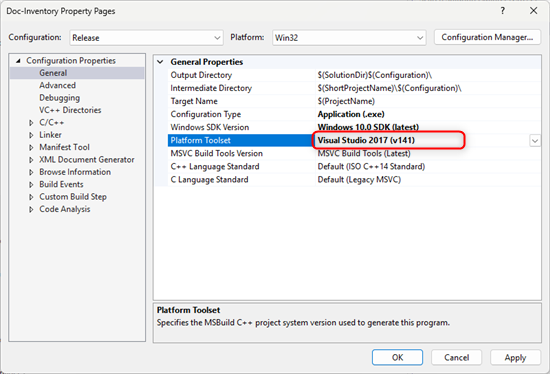
Platform Toolset v141
The first step is to make sure you're using version v141 of the Platform Toolset. The Platform Toolset specifies which version of the Microsoft compiler and libraries will be used to compile the project. In this case, v141 is the latest version to support Windows XP.
This Toolset is not installed by default. To add it, you need to use the Visual Studio Installer, which is installed at the same time as Visual Studio.
In Visual Studio Installer, select "Desktop development with C++" and check the "MSVC v141" checkbox (or "toolset v141" on older versions of Visual Studio).
When this component has been installed, you can launch Visual Studio 2026 again and open your project.
Configuring the Visual Studio project
We now need to configure our project so that the executable can run under Windows XP. We need to take into account the following particularities:
- Windows XP runs in 32-bit mode only
- The executable must be compatible with Windows XP (subsystem version=5.01)
- The application must not use dynamic libraries (DLLs) that did not exist in 2014.
The first thing to do is to ensure that the project's current configuration is set to the x86 or Win32 platform.
Then access the project properties (Menu -> Project -> Project properties).
Project properties
In the "General" section, select the Platform Toolset v141 you have installed.
Then, add the definitions "NO_YSSL" and "_WIN32_WINNT=0x0501" to the C preprocessor. The preprocessor parameters are in the "C/C++" -> "Preprocessor" section. Edit the definitions and add these two values.
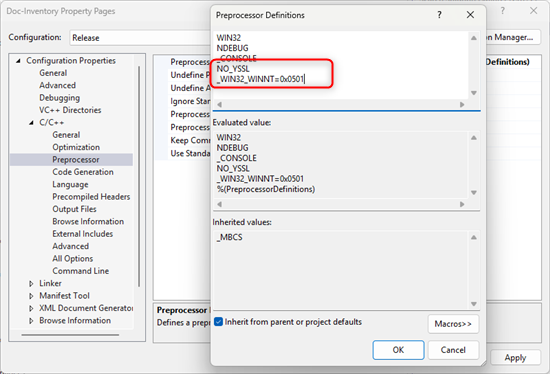
The NO_YSSL and _WIN32_WINNT=0x0501 definitions
The _WIN32_WINNT=0x0501 definition limits access to post-XP APIs and forces the compiler to use APIs that are compatible with Windows XP.
The NO_YSSL definition disables support for HTTPS connections in our library. This is necessary because our library uses a cryptographic API that did not exist under Windows XP.
Still in the "C/C++" section, you must change the Runtime Library parameter so that it directly includes the standard library (CRT) in the executable.
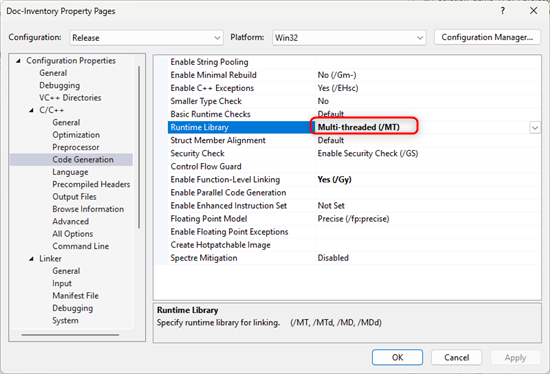
Finally, you must force the linker to generate an executable that is designed for Windows XP. In the "Linker" -> "System" section, set the Minimum Required Version field to 5.01, which corresponds to Windows XP.
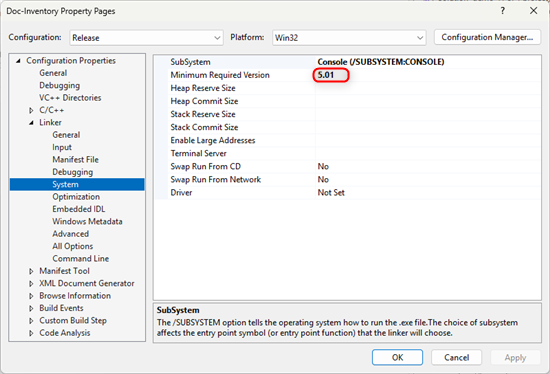
Once these modifications have been made, we can compile the project and copy the executable, and it should run under Windows XP.
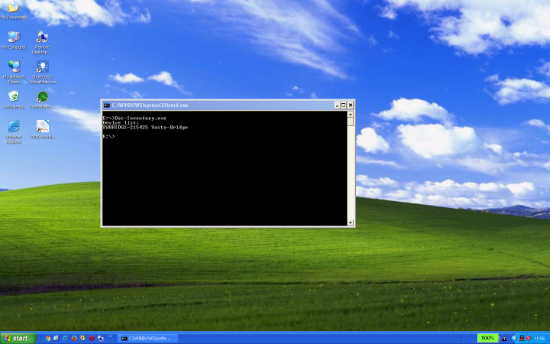
The application under Windows XP
Compiling on older machines
We've just explained how to compile an application for Windows XP from a modern machine running Windows 11/10, but it's also possible to use our C++ library in the IDEs of that time (e.g. Visual Studio 2010).
In this case, the solution is even simpler, as your compiler will naturally generate an executable designed for Windows XP. All you need to do is add the NO_YSSL definition to the preprocessor to disable HTTPS support.
Your code as well
For this example, the application code is very simple, just displaying the values returned by our library, but, if you need to write something more complex, be careful to use APIs that already existed in 2014. For more details on these limitations, please consult Microsoft's documentation.
Conclusion
It's not hard to see how talking about Windows XP support at the dawn of 2026 might raise a smile. Most people will feel that these machines are security risks and should be disposed of as quickly as possible. But there are still cases where it's not easy, if not impossible, to update the OS. This is the case with certain industrial equipment or simulators that are controlled by an application that only runs under Windows XP.
For these reasons, we try to maintain backward compatibility as far as possible.