 To illustrate last month's post on the operation of dimmers, we used small animations made manually on the basis of images produced by the Yocto-Watt-V2-C. In doing so, we thought it would have been handy if the Yocto-Watt-V2-C had been able to record measure sequences itself in animated form. So this week, we did just that :-)
To take advantage of this new feature, simply update your VirtualHub software to today's version.
Instantaneous consumption profiles are displayed in the Yocto-Watt-V2-C web interface using an SVG image, generated on the fly. This is a vector-based image format, which means it can be enlarged at will while remaining sharp. This is the format in which the capture can be saved, for example, for inclusion in a technical report.
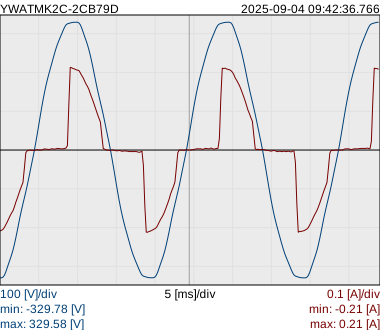
Graphics in SVG format can be zoomed without limits
Today, the SVG format is supported by all major document-editing tools, enabling the graphic to be printed in a clean, pixel-free manner.
For some years now, the SVG format has also been used to create animations. We have therefore kept this same format for saving measure sequences. The Yocto-Watt-V2-C interface now has a 'start recording' button, which will produce an animated SVG, configured to play automatically at the same frame rate as during recording on the Yocto-Watt-V2-C interface.
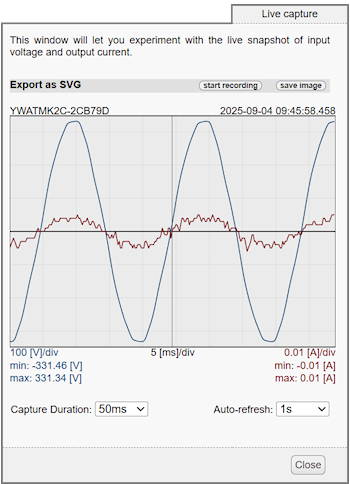
The Yocto-Watt-V2-C interface now has a 'start recording' button
The resulting file is not very large: 10 KB per frame, and even five times less if you compress it.
And here's the result, by inserting the image produced by the start recording function directly into this web page:
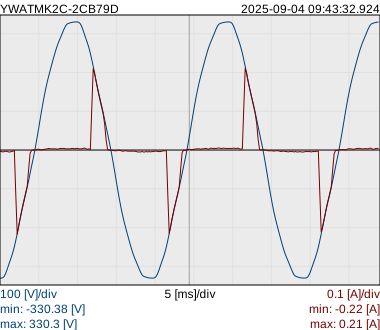
Measure sequence produced by the Yocto-Watt-V2-C
Using animated SVG
The animated SVG format was defined in the SVG 1.1 specification and has been supported by all web browsers since 2017. The most direct way to display a recording made by the Yocto-Watt-V2-C is therefore to drag it onto a browser window, or insert it into a web page like this one.
Unfortunately, LibreOffice Impress and Microsoft PowerPoint still don't support the insertion of animated SVGs into a slide. So if you want to include a recorded sequence in a presentation, you'll need to convert it, either as an animated GIF or as a video. There are online conversion tools. Of course, once converted, the format is no longer vectorial: so take care when converting to choose a pixel size sufficient for the final display on the projector.
Editing captions and selecting images
One of the great advantages of the SVG format is that it is a purely textual format (XML-like), which you can understand and modify. So you can easily open the file with a text editor (Nodepad++, Sublime Text, or VisualStudio Code, for example) to modify it.
Image captions are created using <text> tags and can be edited directly. For example, you can replace the image time stamp with information about the context of the measure:
font-size="12px" x="380" y="-137" stroke="none" fill="#000000">
2025-09-03 19:09:02.152</text>
The list of frames to be displayed is almost at the end of the file, in the values attribute of the <animate> tag. It's simply a list of frame identifiers, separated by semicolons.
So you can easily remove frames from the list if you wish, or duplicate a frame identifier if you want to add an frame freeze. The total duration of the sequence, which defines the scrolling speed, is also an attribute of the <animate> tag that you can modify without risk.
That's all there is to it, and now all you have to do is impress your audience with this new toy!